365Leads Help
Capture business cards at the trade show booth, straight into your Microsoft 365 team. This page explains how it works and what to do if something goes wrong.
- At the boothScan, dictate, enter
- On the PCReview leads on a large screen
- For adminsSettings and administration
- Lead balanceFuel gauge, warning threshold, lock
- PrivacyWhat is stored where
- If something does not workCamera, sign-in, connection
- ContactHow to reach us
At the booth
Sign in
Open your company's address, for example yourcompany.365leads.de, ideally on your phone. Tap »Sign in with Microsoft« and sign in with your usual work account. There is no separate password for 365Leads.
Choose a channel
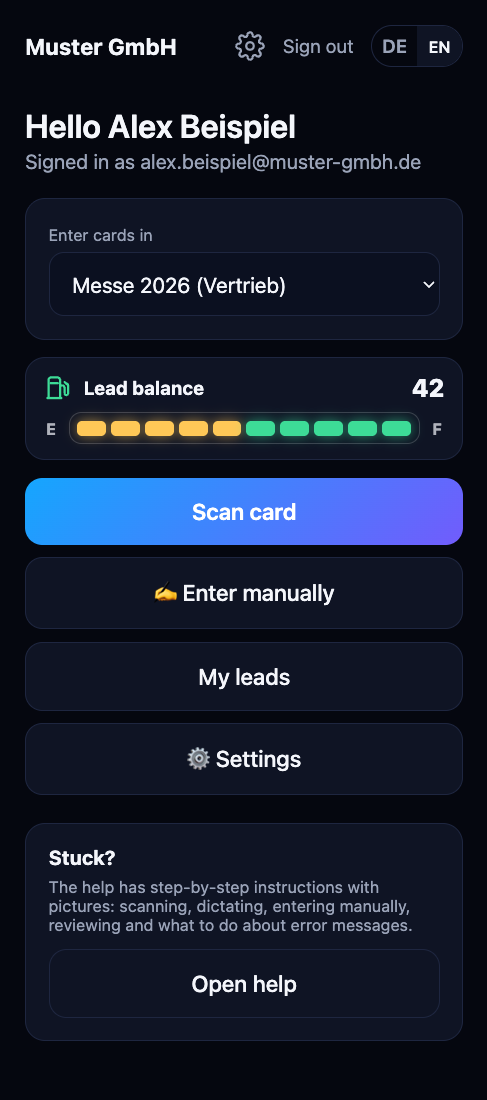
At the top of the start page you see »Enter cards in«. Choose the channel the contacts belong to, for example the trade show or the sales team. The app remembers your choice.
Scan a card
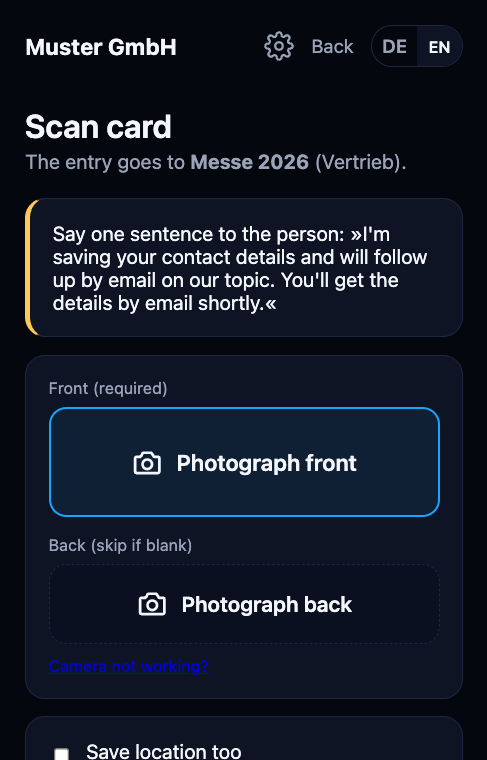
- Tap Scan card.
- Say the sentence shown at the top of the page to the person you are talking to (why).
- Tap Photograph front. On the phone, the camera opens. If there is something on the back, photograph it too.
- Tap Read card. After a few seconds you see the recognized details.
- Check the fields. Yellow border means: recognition was uncertain here. Green means: taken from the card's QR code, so it is error-free.
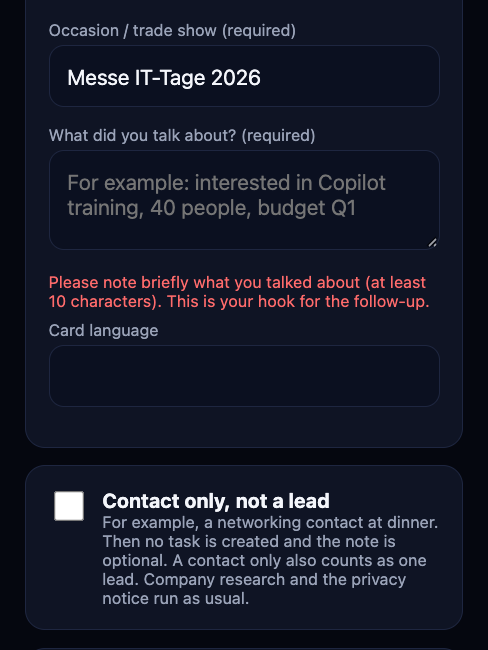
- Add the occasion and write the topic of your conversation under What did you talk about?. Tap Save.
Nothing is created until you save. Before that you can cancel at any time.
What did you talk about?
A lead cannot be saved without this note. It is the hook for your follow-up and appears in the task in Planner under »From the conversation«, right after the contact details and the research summary. At least 10 characters, for example »Interested in Copilot training, 40 people, budget Q1«. If it is missing, a hint appears below the field and nothing is saved. Your entries stay in place.
You can also dictate the note: with Dictate note on the check page, or right away when you capture without a card. What you say about the conversation is then already in the field. Please only facts, no opinions about the person.
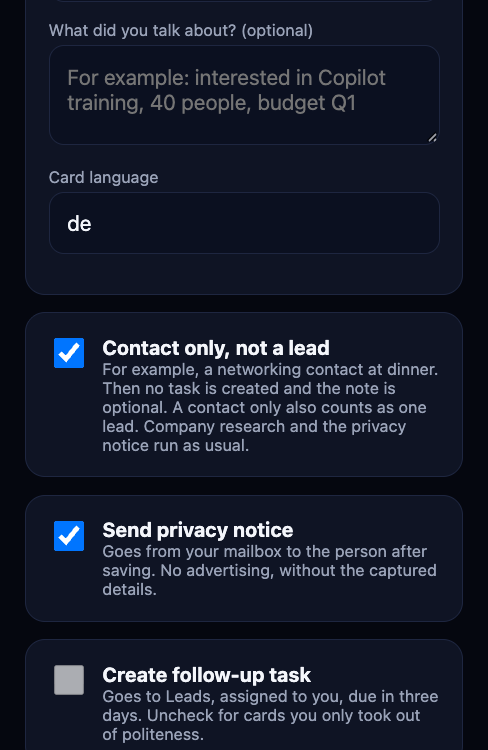
Contact only, not a lead: for a networking contact at dinner, tick this box on the check page. The note is then optional and no task is created in Planner. In the list the entry starts with »Nur Kontakt, kein Lead.«. A contact only also counts as one lead; company research and the privacy notice run as usual.
Dictate without a card
If the other person has no card, tap Capture without a card (dictate). Say the name, company, position, email address, phone, where you met and what you talked about. Spell the email address, for example »m as in Mike«. Then check everything just like with a card. Spoken details are less reliable than printed ones, so check names and email addresses especially carefully.
Please dictate only facts, no opinions about the person.
Enter manually
If it is too loud to talk, tap Enter manually. The same form as after a scan opens, just empty. At a minimum you need the name and one way to reach the person.
The privacy sentence
Anyone who stores contact details must inform the person. That is why a short sentence appears on the screen before every scan. In English it reads: »I'm saving your contact details and will follow up by email on our topic. You'll get the details by email shortly.« Simply say it in the language of your conversation. If the card shows an email address, the person then automatically receives a factual privacy notice. It also says that you will follow up by email on the topic you discussed. The app sends this email in German or English depending on the card.
Unsubscribe
Every email to the contact includes a link to unsubscribe. Whoever opens it sees a short page with the button Austragen (Unsubscribe). Only the button unsubscribes, opening the page alone does not.
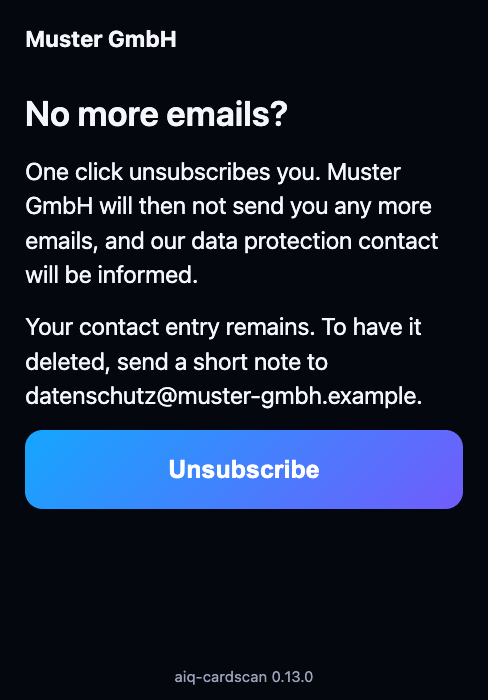
After that, the app sends this contact no more emails. The list then shows Ausgetragen (Unsubscribed) = Yes and Ausgetragen am (Unsubscribed on), and your privacy contact receives an email with name, company and address. The app does both the next time someone from your team opens it, from that person's mailbox. Please also unsubscribe the contact in other systems where you keep them. If you write to a contact yourself, check the Ausgetragen column first.
If you unsubscribe a contact yourself in the list, for example after a phone call, set Ausgetragen (Unsubscribed) to Yes. The app does the rest at the next sync, which runs every five minutes: it fills in Ausgetragen am (Unsubscribed on) with the time of your change, adds »365Leads: als ausgetragen vermerkt (von Hand in der Liste)« (marked as unsubscribed, by hand in the list) to Verlauf (History), and the top of the task only shows »Unsubscribed on …« with »The contact has unsubscribed, no more emails.«, the contact details disappear from the task The app then sends this contact no more emails. Your privacy contact gets no email in this case, only when someone unsubscribes through the link.
Already known
If the person already exists in the channel, the app shows »Already known« with the existing entry. Choose Add to existing entry: empty fields are filled, existing ones stay as they are, and your note is added with the date. Additions do not use any lead balance.
After saving
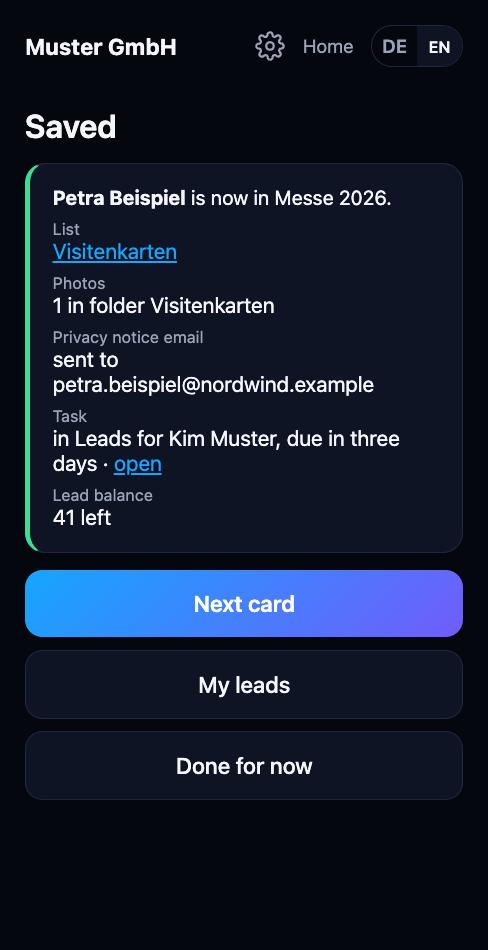
The »Saved« page shows what happened: entry in the channel's list, photos in the team's folder, privacy notice sent, and a task in Planner if set up. A short research on the company runs in the background, the result appears shortly after under »My leads«.
The company profile: At the very top is the summary with priority A, B or C, why a conversation is worthwhile right now and the next step. Below that, up to three questions for the first call, each with the signal it is based on. Then what the company does, open positions by area, the company's tools with their source, and news such as events or announcements. If domain security is switched on, it appears as a separate paragraph at the end. If a block that is switched on finds nothing, the profile says so and where it looked, for example »Offene Stellen: keine gefunden (gesucht: Karriereseite, Personio)« (open positions: none found, searched: careers page, Personio). Without a timely reason, the summary says »Kein aktueller Anlass gefunden.« (no current reason found). Everything comes from public sources about the company, never about the person, and never goes into an email to the contact. The profile text itself is in German for now.
Under My leads you find all contacts you captured, with search by name, company, email or occasion.
List and Planner stay in sync
What happens in the task in Planner also shows up in the list, and the other way round. The list stays the source, Planner is where you work.
How the task is laid out: the notes of the task are formatted, with headings, bold text and lists, always in the same order:
- Contact: name, job title, company, email, phone, mobile, occasion with date, who captured the lead and who it is assigned to. These details come from the list. Please change them there, a change here in the task is overwritten at the next sync.
- Research summary: priority, why now, suggested next step. This is a suggestion by 365Leads, not from the conversation.
- From the conversation: your note from the stand (»What was discussed«).
- History: notes from Planner, from the task chat and from the list, with date, time and name. The newest line is at the top, in the task as in the list.
- Automatic company research by 365Leads: company profile with date and source, »Suggested opener«, fit with your topics. Not from the conversation.
- Card in the list: link to the entry.
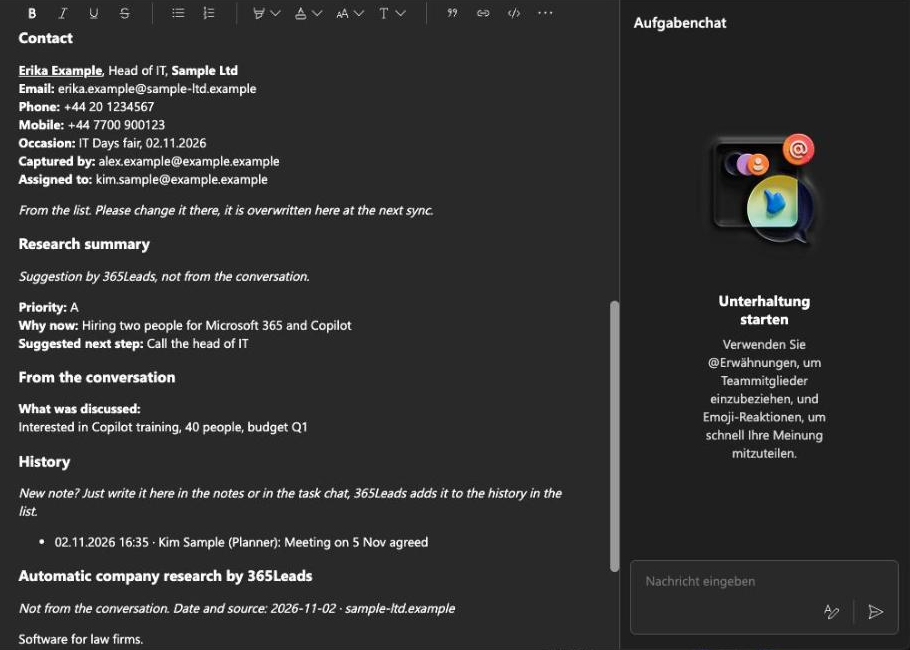
- Note in Planner: simply write into the notes of the task, for example »Meeting agreed for 5 Nov«. The note goes into the Verlauf (History) column of the list with date, time and your name, and then appears in the task under »Verlauf«. What someone writes into »Verlauf« in the list appears in the task as well. Nothing is overwritten. Labels without content, such as »Email:« on its own, are not taken over. The note from the stand (»Worüber gesprochen«, What we talked about) stays as it is.
- Task chat: what is written in the chat of the task also goes into the history, as a line »Planner-Chat« with the name and time of the message. If you edit a message, the line changes too. If you delete one, the line disappears. 365Leads itself never writes into the chat. An admin can turn this off per channel (Sync with Planner).
- Status: »In progress« in Planner means »in Arbeit« in the list. Ticking off means »erledigt, Ergebnis offen« (done, result open). You can add the result (meeting, offer, no interest, won, lost) under »My leads« if you like.
- Assigned to: the Zuständig (Assigned to) column can hold several people, separated by »; «, for example »Kim Muster; Alex Beispiel«. If someone is added on one side, the app adds them on the other. Only people removed on one side drop out. If the list and Planner change at the same time, the app merges both changes. Planner notifies new people of the task itself.
- Due date: change the date in one place and the other follows. If two people change it at the same time, the more recent change wins.
- Unsubscribed: if the contact has unsubscribed, the top of the task only shows »Unsubscribed on …«. The contact details disappear from the task, the task itself stays.
- Deleted: if you delete the task, the entry stays with the note »Aufgabe in Planner entfernt« (task removed in Planner). If you delete the entry, the task disappears too.
The sync runs every 5 minutes if an admin has turned it on in the background, otherwise when someone opens »My leads«.
On the PC
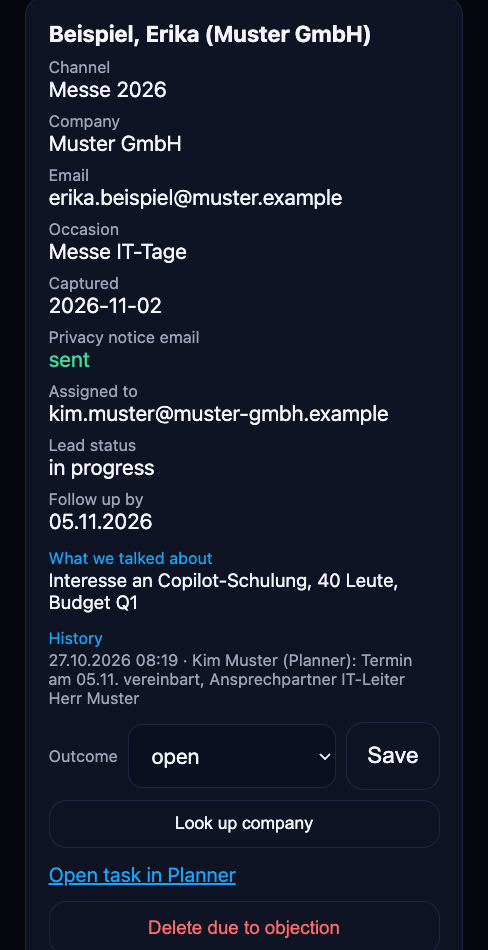
On a screen at least 900 pixels wide with a mouse, 365Leads shows a view for reviewing and follow-up work. On the phone everything stays as usual. Capturing with the camera remains the phone's job, on the PC you enter contacts manually or review what was captured at the booth.
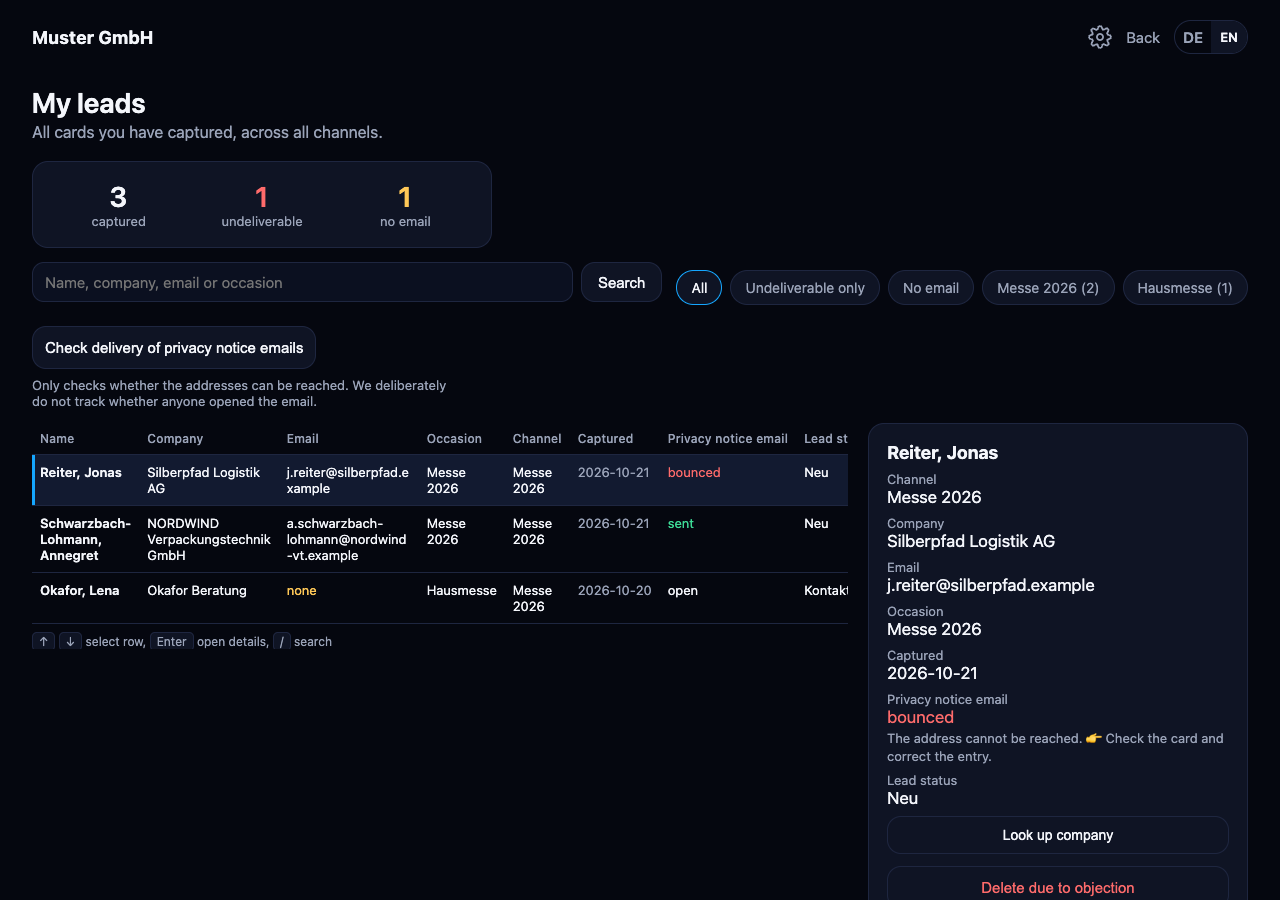
- My leads is a table on the PC with name, company, occasion, channel and date. Clicking a row shows the card on the right. Search and filters sit in a bar at the top and apply to table and cards alike.
- Keyboard: arrow up and down change the row, Enter jumps to the card's first button, the slash / jumps into the search, Escape goes back to the row.
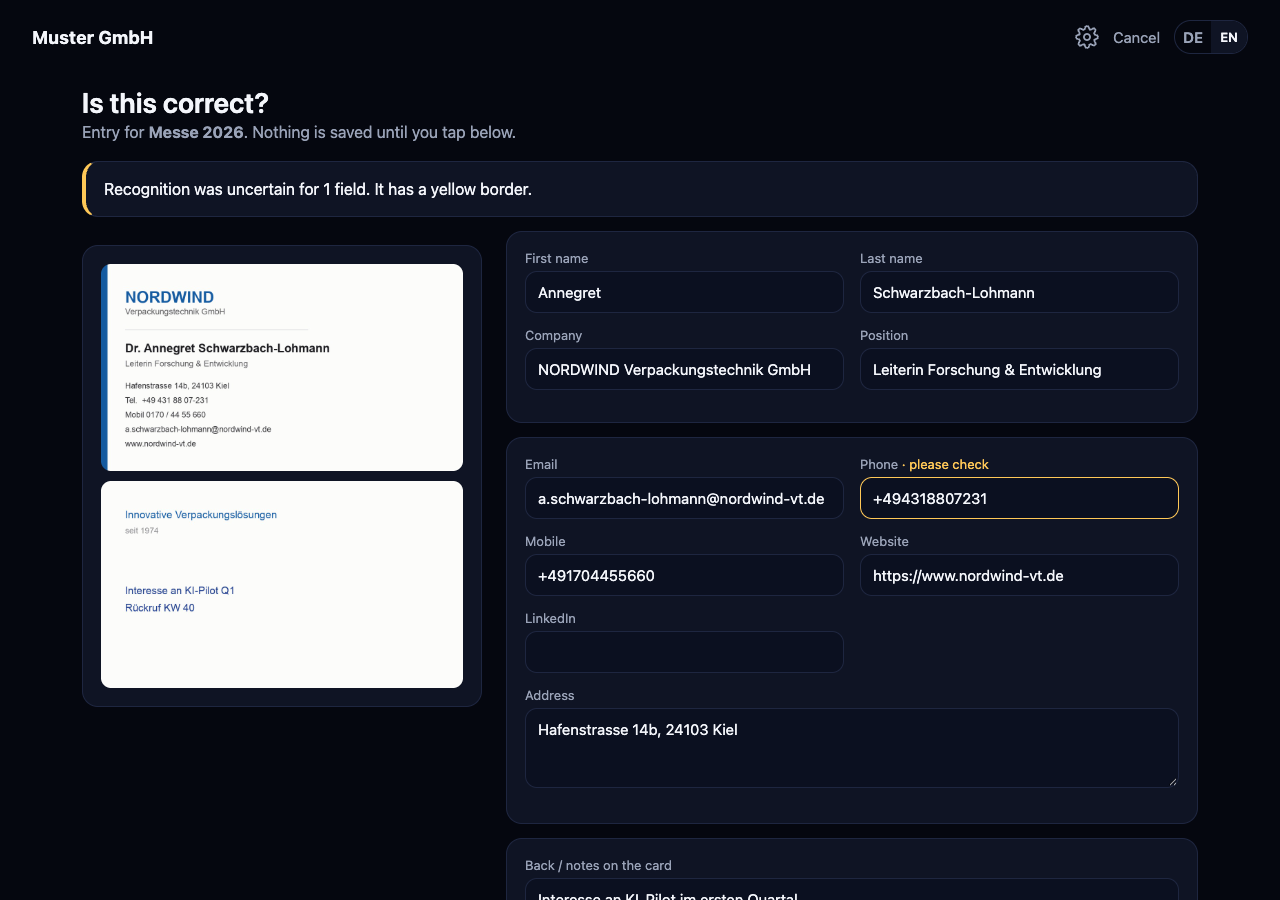
- Review: the photos are on the left, the fields in two columns. Save and discard work as on the phone.
Lead balance
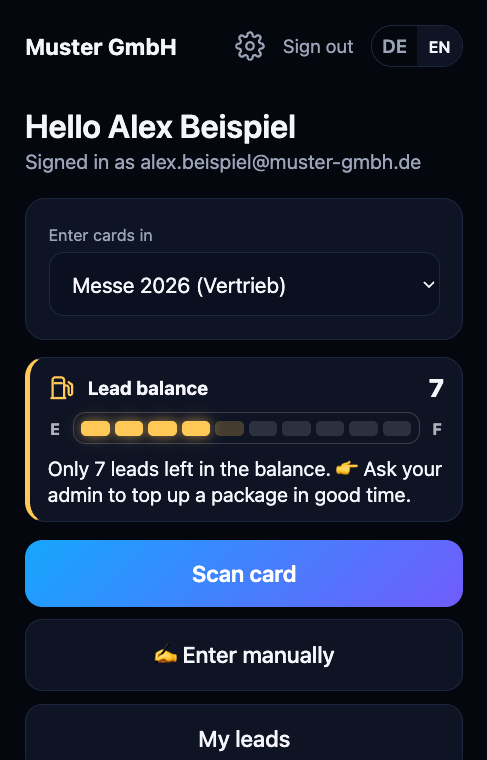
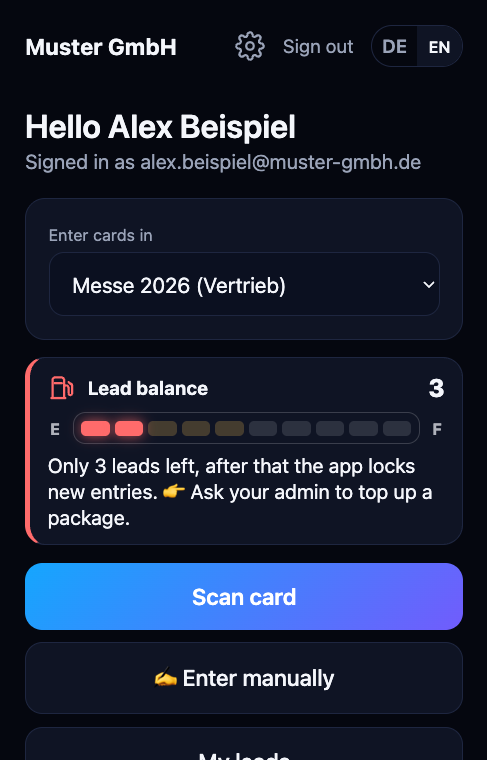
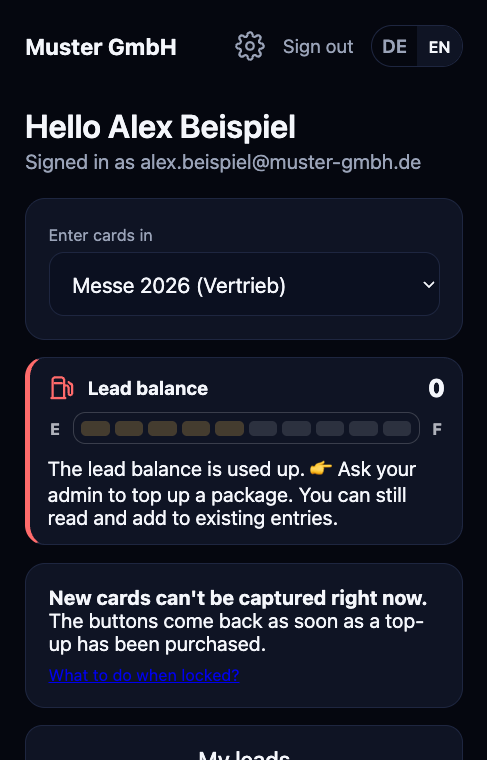
Billing is by captured leads in packages. Every new entry uses one lead. Additions to existing entries are free. You see the lead balance as a fuel gauge on the start page.
| Display | What it means | What to do |
|---|---|---|
| Green | Enough balance. | Nothing. |
| Warning light | The balance is below the warning threshold. Your admin sets the threshold, the default is 10 leads. The contact person from your order receives an email about it. | Ask your admin to top up a package in good time. |
| Red | Only the last 3 leads are left. | Top up now, otherwise capturing at the booth will stop soon. |
| Empty | No balance left. New contacts cannot be created. | Top up a package. You can still read and add to existing entries. |
The app never locks because something is wrong on our side. If the connection to our platform drops for a moment, you simply keep capturing. The app reports the leads as soon as the connection is back.
How long the balance is valid
The balance is valid for 24 months. Every top-up extends your entire remaining balance to a full 24 months from the purchase, including leads from older packages. The oldest balance is always used first. If balance is about to expire, the contact person from your order receives an email 90 and 30 days before, with a note about topping up.
For admins
Admin consent in Microsoft 365
Before anyone from your company can sign in, an administrator of your Microsoft 365 tenant consents once for the whole organization. You receive the link for this from us during setup. Sign in with it as an administrator and confirm the permissions.
365Leads uses only delegated permissions. The app therefore always acts on behalf of the signed-in person and sees only what this person is allowed to see anyway. It reads your teams, creates entries in the chosen list, stores the card photos in the team's folder, sends the privacy notice from the mailbox of the person capturing the lead and, if set up, creates Planner tasks. If assignment by free time is turned on, it also reads the team members and free or busy from their calendars.
Who may manage
Only the people entered as app admins during setup may manage. They see a gear icon and the Settings button at the top right of the start page. Everyone else only captures. We make changes to the list of app admins for you, under Settings → Admins there is a button Request change for this.
The settings
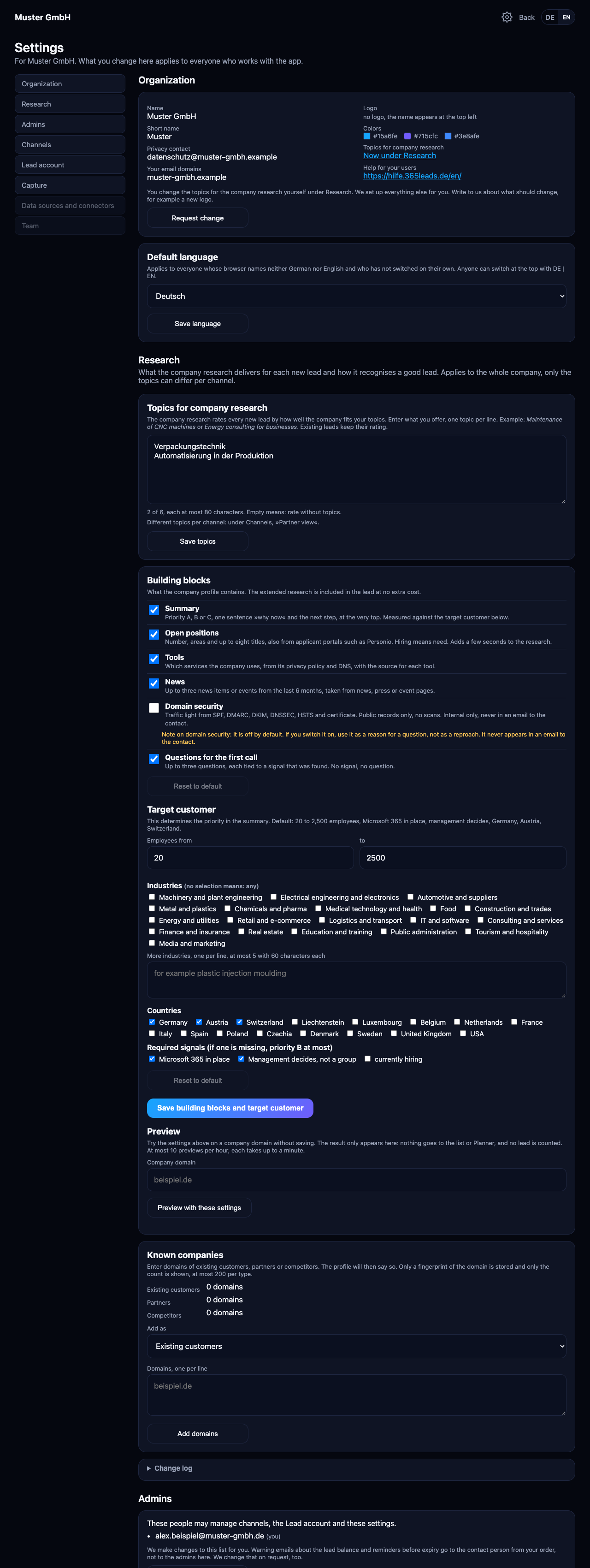
One page with eight sections, on the PC with navigation on the left, on the phone as tabs at the top:
- Organization: name, logo, colors, privacy contact and website for reference, we make changes to these for you. You change the default language of the app yourself.
- Research: topics, building blocks, target customer, known companies and a preview for the company research.
- Admins: who may manage, and to which address warning emails go.
- Channels: create, check columns, privacy notice email, Planner, partner view, remove.
- Lead account: fuel gauge, warning threshold, request a top-up.
- Capture: check card recognition and the connection to Microsoft 365, voice input.
- Data sources and connectors: preview of CRM handover, enrichment and webhook. Not functional yet, coming as an add-on module.
- Team: coming later.
Topics for company research
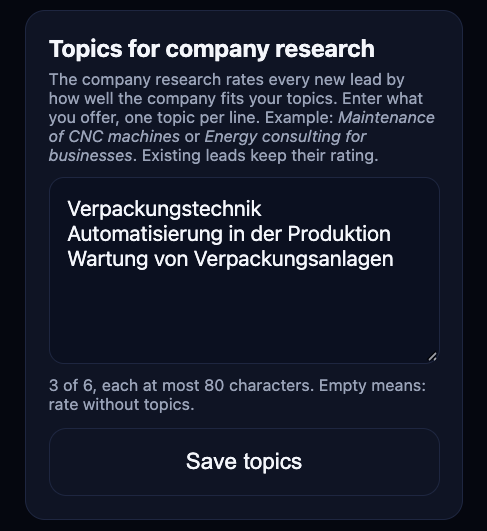
The company research rates every new lead by how well the company fits your topics. Enter what you offer. Under Settings → Research → Topics for company research (under Organization up to version 0.13):
- One topic per line, at most six, each at most 80 characters. Example: »Maintenance of CNC machines« or »Energy consulting for businesses«.
- Save topics. The page reports how many topics were saved.
The new topics apply from the next lead. Earlier leads keep their rating. An empty field is allowed, then the research rates without topics. Only app admins can change this. A comma or semicolon also separates two topics.
Set up company research
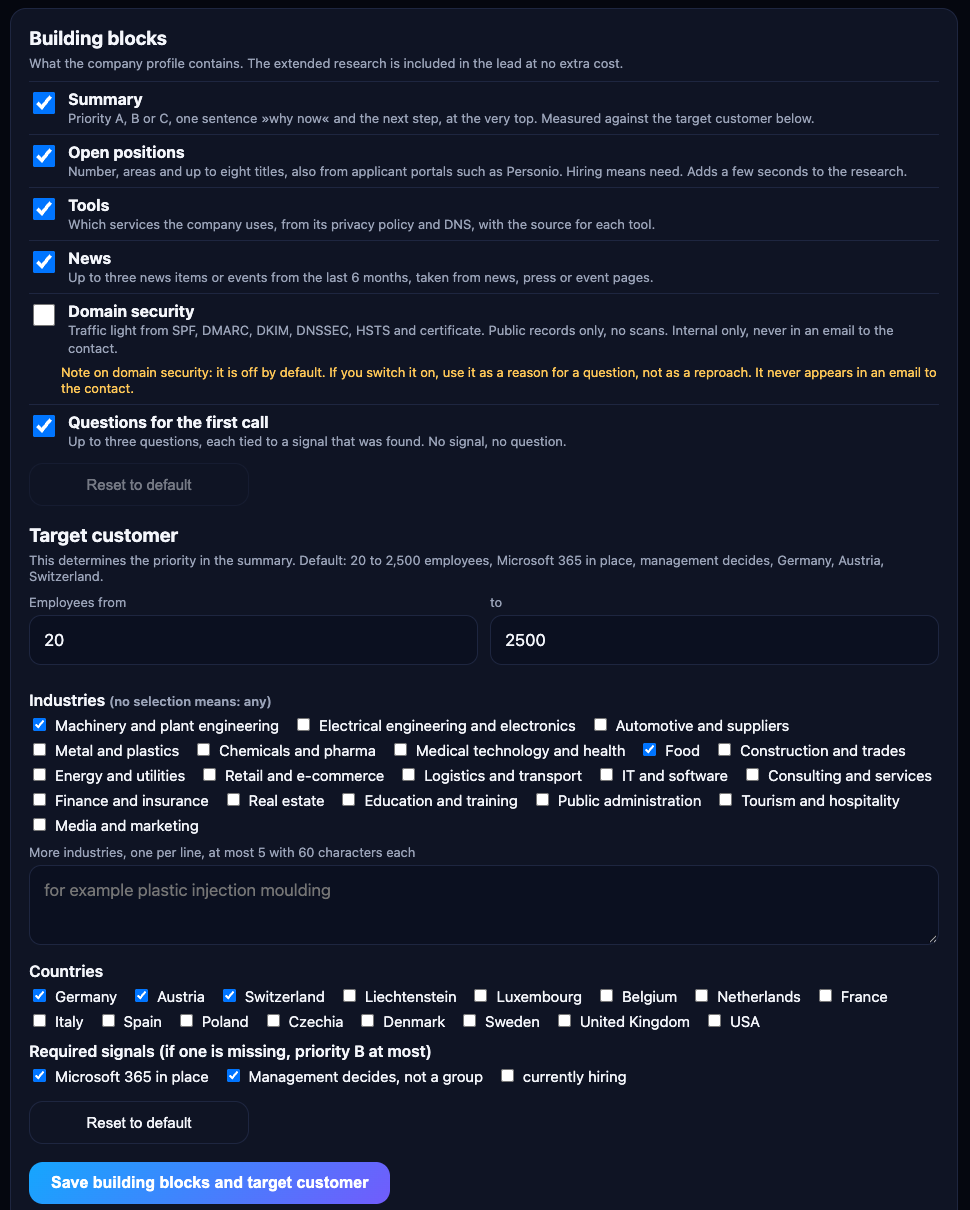
Under Settings → Research you decide what the company research delivers for each new lead and how it recognises a good lead. This applies to the whole company, only the topics can differ per channel via the partner view. The extended research is included in the lead at no extra cost. Only app admins can change this.
- Switch building blocks on or off: summary, open positions, tools, news, domain security, questions for the first call.
- Define the target customer: employees from and to, industries (no selection means any, plus up to five of your own), countries and required signals. If a required signal is missing, the priority is B at most. Default: 20 to 2,500 employees, Microsoft 365 in place, management decides, Germany, Austria, Switzerland.
- Save building blocks and target customer. New leads are researched this way from then on, earlier leads keep their profile until you refresh it under My leads.
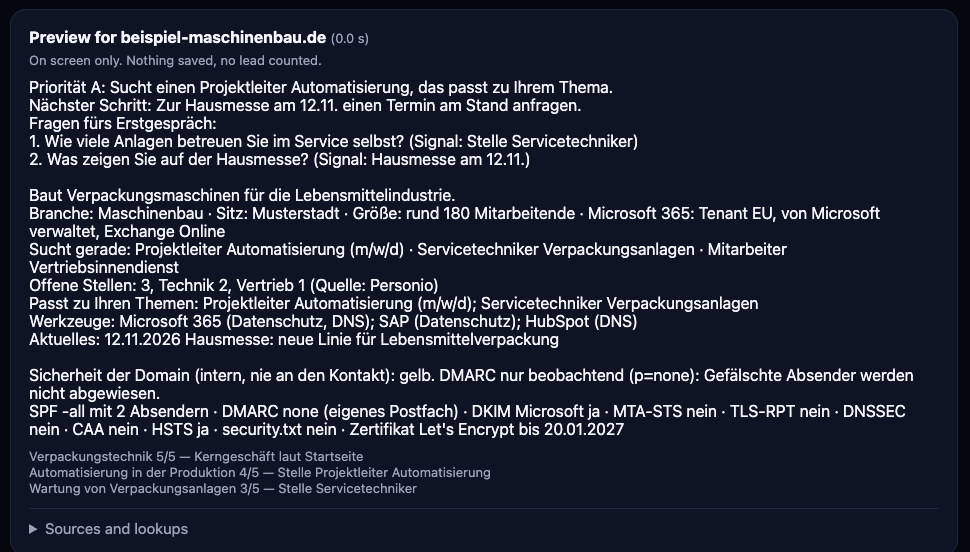
Preview: Enter a company domain at the bottom, for example example.com, and tap Preview with these settings. The research runs with the settings currently on the page, even unsaved. The result only appears on screen, nothing goes to the list or Planner, and no lead is counted. At most ten previews per hour, each takes up to a minute.
Domain security is off by default. When switched on, it shows a traffic light from public records: SPF, DMARC, DKIM, DNSSEC, HSTS, security.txt and the website certificate. There are no scans. It only appears internally in the list, Planner and My leads, never in an email to the contact. Use it as a reason for a question, not as a reproach.
Known companies: Enter domains of existing customers, partners or competitors, one per line, at most 200 per type. The profile then says, for example, »Bekannt als: Bestandskunde« (known as: existing customer). Only a fingerprint of the domain is stored and only the count is shown. A domain includes its subdomains.
Change log and reset: Every change is listed with person, time, old and new value in the log at the bottom. Each section has Reset to default. Only your deviations from the default are stored. If we improve the default, it applies to you as well, as long as you have not changed that item.
Set up channels
A channel is a list in a team. That is where the contacts go. Under Settings → Channels → Create new channel:
- Choose the team. You see the teams you are a member of.
- Give it a name for selection in the app, for example »Trade show Stuttgart«.
- Have a new list created (recommended) or use an existing list.
Anyone who captures contacts into a channel must be a member of the team. If you remove a channel in the app (two steps, with confirmation), the list and photos stay in the team.
Partner view: if you capture for a partner at a trade show, enter the partner's name, domains and topics per channel. The app then rates the contacts from the partner's point of view.
Note about the conversation
Per channel, the note »What did you talk about?« is required by default. If a channel only collects addresses, for example for a newsletter stand, make it optional under Settings → Channels with Make the note optional. The same button turns it back on.
Privacy notice email
The privacy notice to scanned people is turned on per channel. It fulfills the duty to inform under Article 13 GDPR and contains the link to unsubscribe. Turning it off is only meant for test runs whose entries you delete afterwards.
Tasks in Planner
If you like, the app creates a follow-up task after saving. Under Settings → Channels → Set task target you choose the plan in the team, the bucket and who new tasks are assigned to. If the team has no plan yet, add a »Tasks by Planner« tab to the channel in Teams.
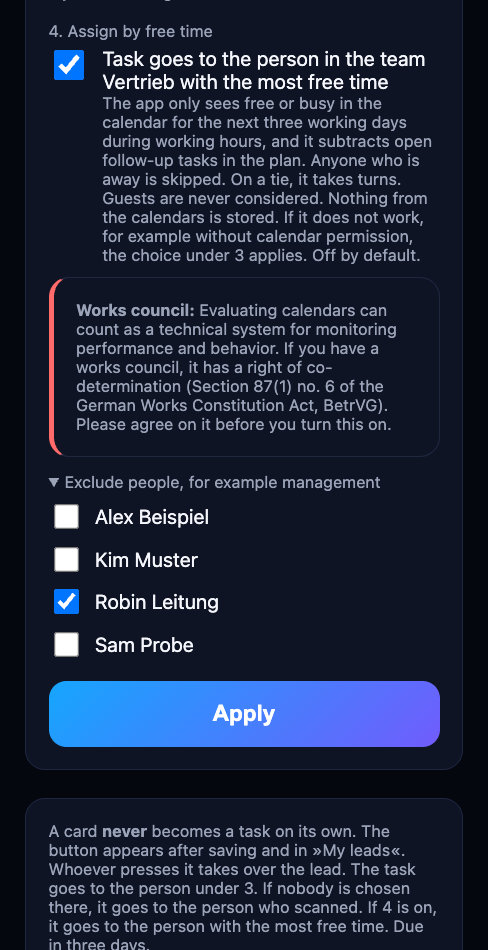
Assign by free time: if you turn on the option under item 4 of the task target, the task goes to the person on the team with the most free time. For this, the app sees only free or busy in the calendar for the next three working days within working hours, no meetings or subjects. Open follow-up tasks in the plan count against free time. People who are out of office are skipped, on a tie it goes round-robin. Guests are never chosen, and you can exclude individual people such as management there. The app stores nothing from the calendars. If it does not work, for example without a calendar, the selection under item 3 applies. The option is off by default.
Sync with Planner
For every channel with a task target, the app syncs list and Planner (what exactly). It is on by default. Under Settings → Channels you can turn it off per channel; the task then gets its description only when it is created, as before.
Task chat: with the sync, the app also takes the messages from the task chat into the history. This is on by default. With Stop taking over the task chat you turn it off per channel, what is already in the history stays. If the sign-in used for the sync cannot read the chat, a hint appears below the channel.
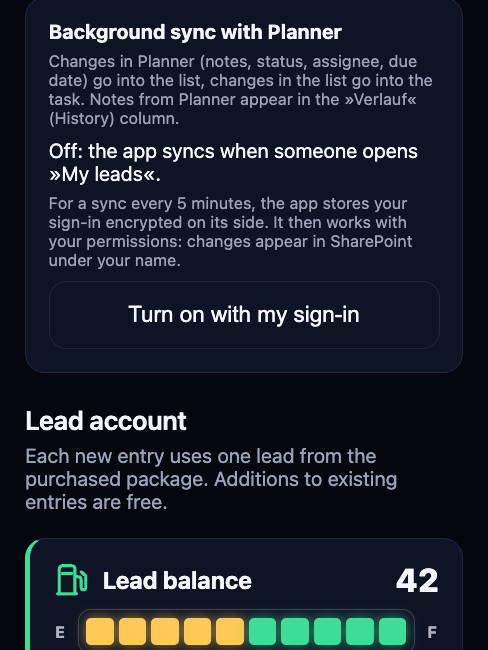
In the background: under Channels → Background sync with Planner, press Turn on with my sign-in and the sync runs every 5 minutes. For this the app stores your sign-in encrypted on its side and works with your permissions: changes show your name in SharePoint, and it only sees lists and plans that you can see. If your sign-in expires, the page says so; turn it off and on again. Without this setting the app syncs when someone opens »My leads«.
Existing lists get the new columns Verlauf (History), Ergebnis (Result) and Nachfassen bis (Follow up by) at the first sync, and the lead status gets the values »in Arbeit« and »erledigt«. Your own values stay.
Set the warning threshold
Under Settings → Lead account you see the balance and set the warning threshold. From this number of remaining leads, the warning light comes on in the app and the contact person from your order receives an email. The default is 10 leads. If many people are at the booth at the same time, set the threshold higher so there is enough time to top up. The app always shows the last 3 leads in red, regardless of the threshold.
The threshold cannot be higher than the available balance. If, for example, 7 leads are left, the slider goes up to 7 at most. After a top-up you can set it higher. When the balance is used up, the setting is locked until the next package is credited.
Top up a package
Lead packages come in six sizes from 10 to 500 leads, the prices are on 365leads.eu. For a new package, use the Request top-up button under Settings → Lead account, contact our sales team (contact) or simply reply to the warning email. You receive an invoice, and after it is credited the balance shows in the app within five minutes at the latest. Every top-up extends your entire remaining balance to a full 24 months.
Remove access
If someone leaves the company, deactivate the Microsoft account as usual. This also ends access to 365Leads. If 365Leads should end entirely in your organization, delete the application »365Leads« in the Microsoft Entra admin center under »Enterprise applications« and let us know.
Privacy and security
- Your contacts stay with you. The app stores entries and card photos in your team's list and document folder in Microsoft 365. We hold no contact data.
- Unsubscribes stay with you. Who unsubscribes via the link in the email is recorded only in your list. Until the app has entered it there, your app instance keeps only an identifier without a name.
- We only count. Our platform knows only an anonymous identifier and the time for each lead, no names and no contact details.
- Reading cards: to read the card, the photo is sent to an AI model that works on our behalf and does not use the data for training. In our app the photo is held only in memory for this.
- Dictating: the recording is turned into text on our own server and then discarded.
- Separate environment per company: every company has its own, isolated instance of the app. It runs in a data center in Germany.
- Contract: we work as a processor under Article 28 GDPR, with a data processing agreement.
The privacy notice for captured contacts is in your app at yourcompany.365leads.de/datenschutz. It names your company as the controller.
If something does not work
The camera does not open
Allow the browser to access the camera. On iPhone: Settings → Safari → Camera → »Ask« or »Allow«. On Android: in the browser's site settings. On a computer, the same button opens the file picker, where you choose an existing photo.
Sign-in does not work
»Need admin approval«: your Microsoft administrator has not consented yet. See Admin consent in Microsoft 365.
Wrong account: sign out and choose your work account. If in doubt, open a private browser window.
Error code with »AADSTS«: note the code and write to us.
Recognition is inaccurate
Take the photo again, with more light and straight from above. Check and correct fields with a yellow border. If needed, enter manually.
No connection or an error message
Check the network at the booth, exhibition halls often have weak Wi-Fi. Under Check connection to Microsoft 365 the app tests access to your team. If a note with 👉 appears, it shows the next step.
I see no gear icon and no »Settings« button
Only app admins see these. See Who may manage.
An entry is wrong or a duplicate
Correct or delete it directly in the list in the team. Deleted entries are not credited back.
Contact
Questions about setup, packages or in case of problems: contact your contact person at AI.quantex GmbH or write to hello@aiquantex.de.
Privacy questions about 365Leads itself: datenschutz@aiquantex.de.